
This guide will walk you through the process of setting up an email address in Opera Mail.
Opera Mail is a great email client to send, receive and organise emails. It is cross platform application which is available for Windows, Mac OS X and even Linux.
Step One
(Installing Opera Mail)
Before you continue, you will have to download and Install the Opera Mail Client on your computer. Click one of the links given below to get the software. Once you have downloaded the program, you can follow the easy on-screen instructions to complete the Installation process.
- Opera Mail for Mac: Download Here
- Opera Mail for Windows: Download Here
- Opera Mail for Linux: Download Here
Step Two
(Setting up the Email Address)
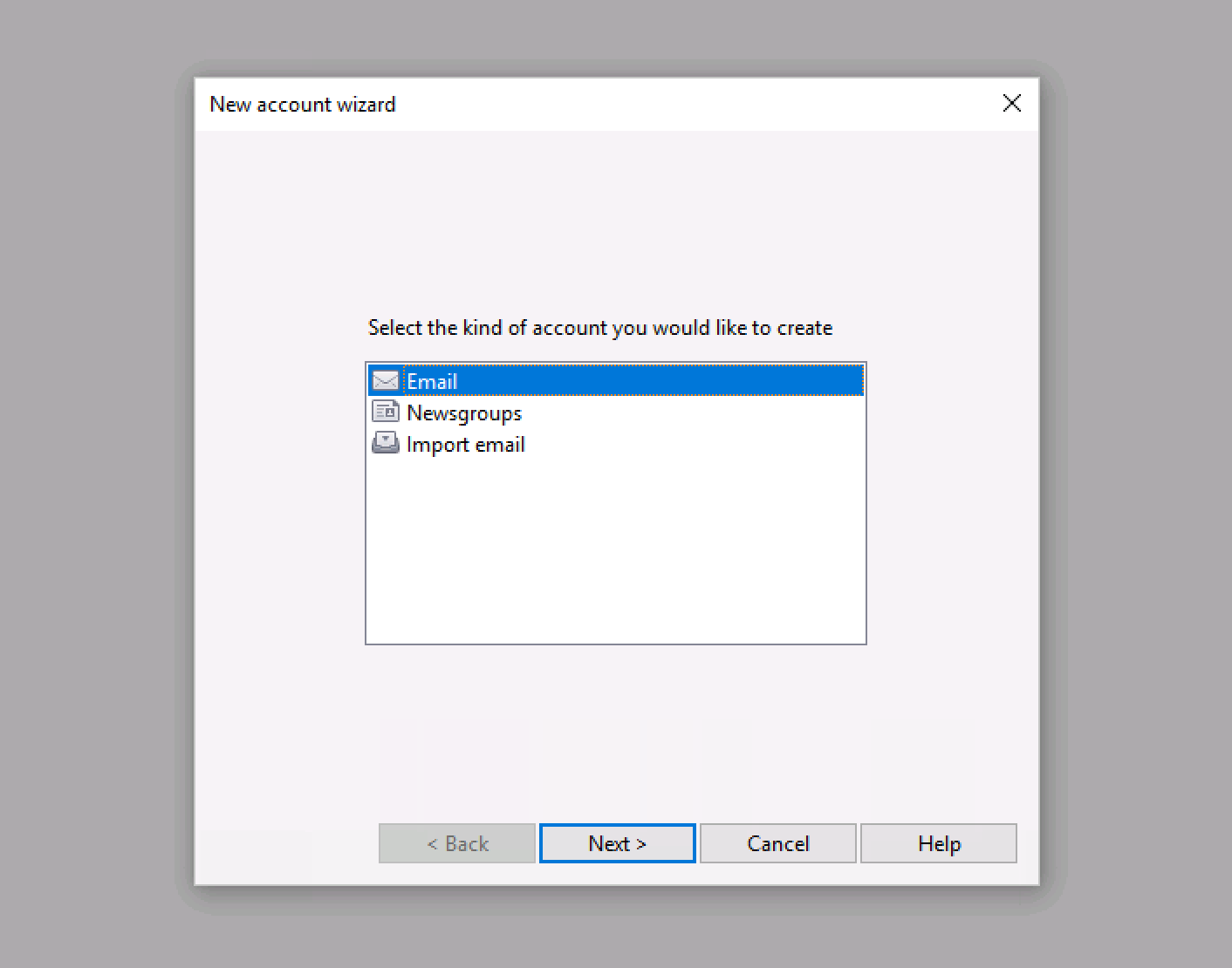
Once Opera Mail is installed, launch the application. You should then be presented with the "New account wizard". Select Email then click Next.
On the next screen, enter your Full Name, Email Address and Organisation in the relevant fields. After completing these options, click on the "Next" button again.

On this next screen. Enter the email address you wish to setup and the password for this email account. Make sure to select IMAP and then click Next.

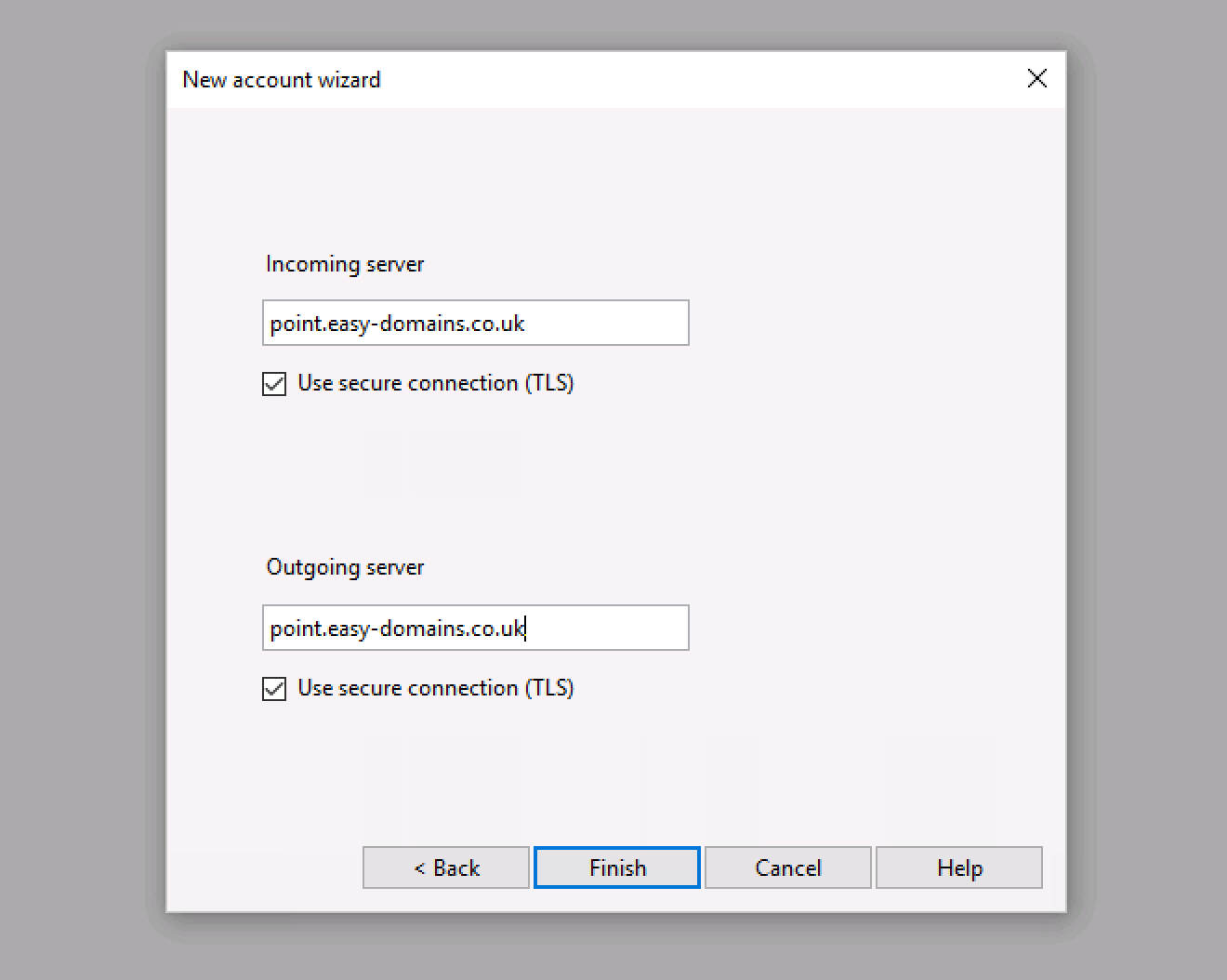
On this next screen, we need to add our mail servers. If you are not sure what the mail servers are or where to find this information please check out our "How to Create an Email Address in Easy Sites". The information required is listed under Help next to the email address you are setting up.
Once you have entered your mail servers tick the "Use secure connection (TLS)" to ensure your connection to the mail server is secure. Once all the information has been entered click Finish.
Your emails are now setup. Opera Mail will start synchronising all your Emails. Click Compose to send a test email and make sure everything is working correctly.
If you have any problems following this guide, please contact our team at support@easy-domains.co.uk or call us on 01253 968004.
Comments
0 comments
Please sign in to leave a comment.